Why Does RDP Copy-Paste Suddenly Stop Working? (With Command-Line Fix)
2026-03-24
Tags: RDP · Troubleshooting · Windows
If you frequently use Windows Remote Desktop Connection, you've likely encountered this frustrating situation:
You copy some code or text on the remote desktop, switch back to your local machine and press Ctrl+V, but nothing happens. Or what you paste is still content from half an hour ago. No matter how furiously you mash Ctrl+C on the remote machine, the clipboard between the two machines seems physically disconnected.
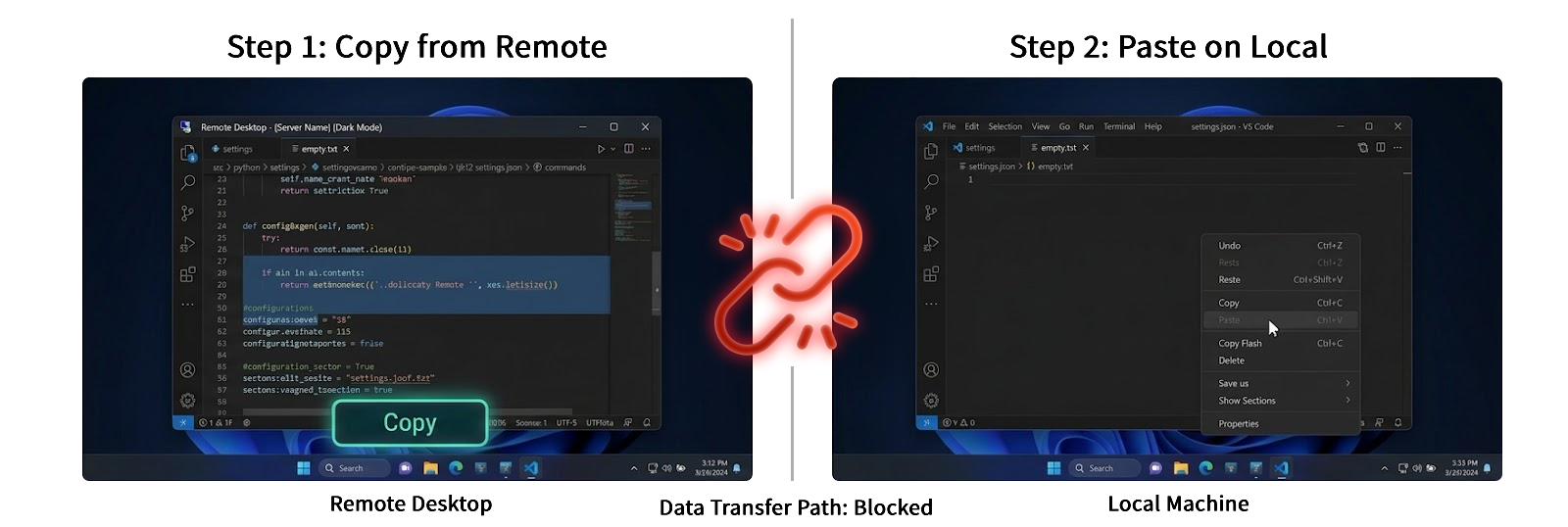
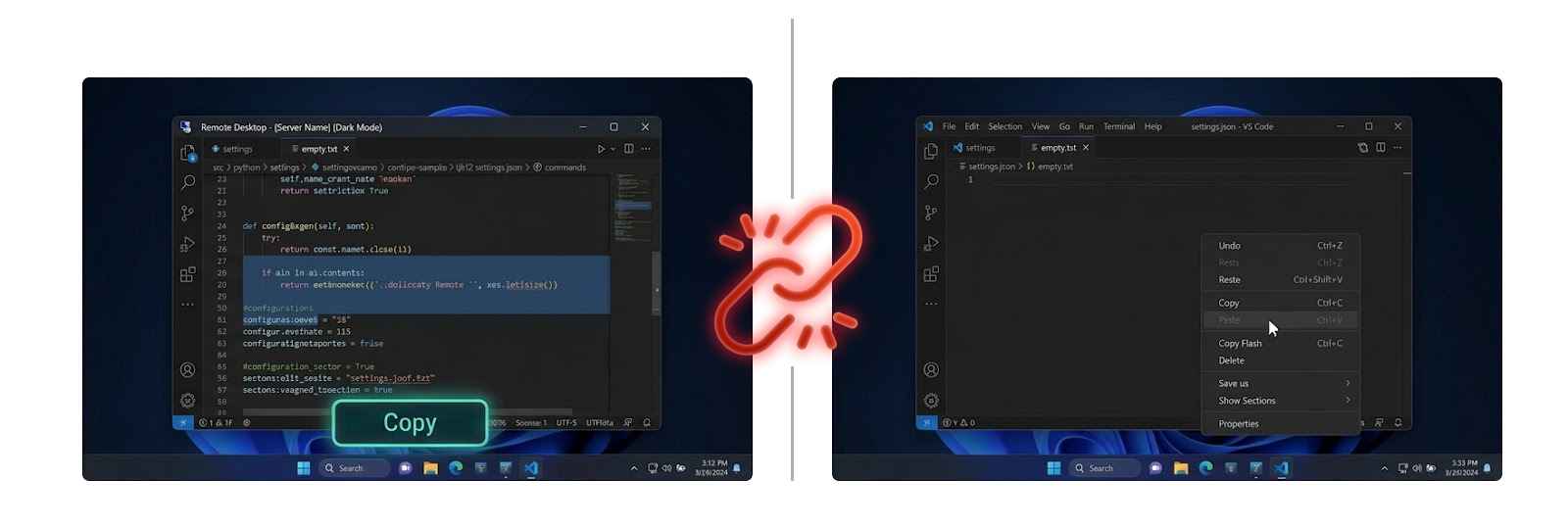
This is not your mistake—it's a known issue in Windows RDP that has existed for years:rdpclip.exe process deadlock.
Today, let's briefly discuss why the clipboard "goes on strike" from a technical perspective, and how to restore it as quickly as possible.
The Underlying Logic of RDP Clipboard: Delayed Rendering
To understand the root cause, we need to first meet the background process responsible for synchronizing the clipboard between local and remote machines—rdpclip.exe (Remote Desktop Clipboard Monitor).
To save precious network bandwidth, RDP's clipboard doesn't use a "transmit immediately" brute-force approach. Instead, it uses a mechanism called Delayed Rendering. Its workflow is very similar to modern logistics notification systems:
- Send metadata, not the actual item: When you press
Ctrl+Con the remote machine,rdpclip.exedoesn't immediately send large images or long text over the network. Instead, it sends a "notification" through the RDP virtual channel to your local machine: "I have something new here, format is plain text/image." - Register format placeholders: Upon receiving the notification, your local machine registers these format information in its own system clipboard, pretending the content is already available.
- Transfer on demand: Only when you actually press
Ctrl+Von your local machine (triggering the paste command) doesrdpclip.exeon the remote machine send the real data over the network.
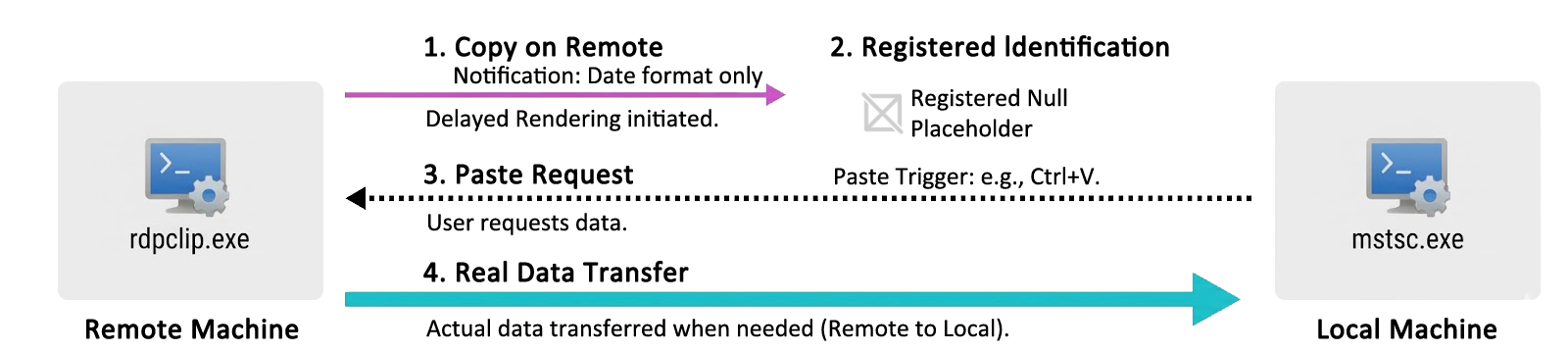
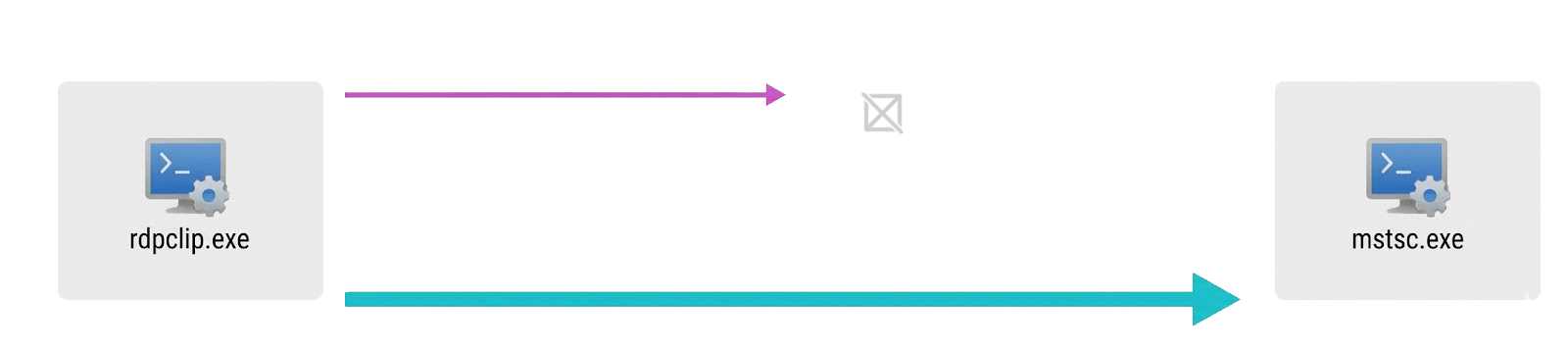
This mechanism is extremely efficient, but it introduces a fatal weakness: state synchronization is very fragile.
Why Does rdpclip.exe Suddenly Freeze?
Due to the complex Clipboard Viewer Chain and virtual channel state machine synchronization involved at the underlying level, rdpclip.exe is actually an extremely fragile process. Common causes for its freeze include network fluctuations, clipboard access conflicts, complex format parsing failures, etc.
For everyday users, we don't need to dive into these obscure system-level bugs. We just need to understand one core logic: once rdpclip.exe falls into deadlock, this "logistics notification" channel is completely cut off. At this point, your local system will never receive the "credentials" and "pickup codes" from the remote machine, so real data transfer naturally cannot initiate—this is the fundamental reason why no matter how frantically you press Ctrl+C, the clipboard remains unresponsive.
Fix: Restart the rdpclip.exe Process
Since the process is frozen, the most direct solution is to forcefully terminate and restart the target process. You don't need to disconnect the entire RDP session—just execute the following operations on the remote machine.
Method 1: Graphical Interface (GUI)
- On the remote desktop, right-click on an empty space in the taskbar (or press
Ctrl + Shift + Esc) to open Task Manager. - Find
rdpclip.exein the process list (in newer systems it may display as RDP Clipboard Monitor). - Right-click the process and select End Task.
- Restart the process:
- Windows 11 users: Directly click the Run new task button near the top-right of Task Manager.
- Windows 10 and earlier (including Win 7 / 8 / Server): Click File -> Run new task in the top-left corner.
- In the popup window, type
rdpclip, check "Create this task with administrative privileges" (not required but recommended), and click OK.
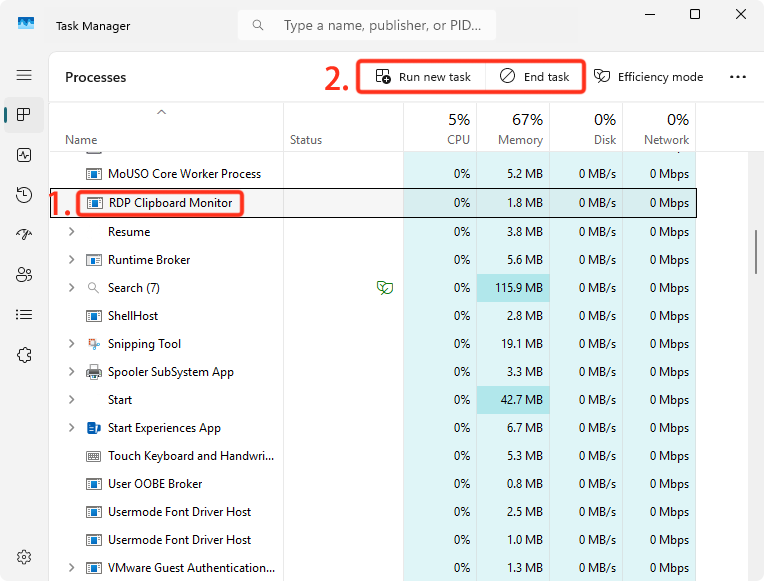
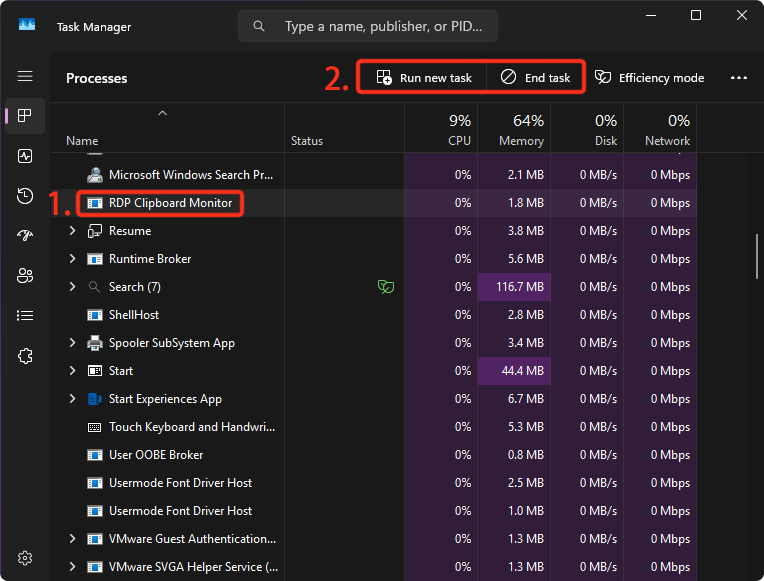
Cross-device copy-paste should now be restored to normal.
Method 2: One-Click Command Line Fix (CLI)
For developers or ops personnel, GUI operations can be tedious. You can run the following commands directly in the remote machine's terminal for a one-click restart.
Using CMD (Command Prompt):
taskkill /f /im rdpclip.exe && start rdpclip.exeUsing PowerShell:
Stop-Process -Name rdpclip -Force; Start-Process rdpclipEfficiency Tip
If you frequently encounter this problem, you can create a new text document on the remote desktop, paste the above CMD command into it, and change the file extension to .bat (e.g., name it FixClipboard.bat).
From now on, whenever the clipboard stops working, just double-click to run this script, and you can restore your working state in 1 second.
Why not use PowerShell scripts (.ps1)?
By default, Windows security policies block direct execution of unknown
.ps1scripts (double-clicking usually opens them in Notepad). For maximum efficiency in solving the problem, using the ancient but reliable.batbatch file is the best plug-and-play, configuration-free choice.